Disabling a firewall to use MyAnonamouse can seem like a quick fix when connectivity issues arise, but doing so without precautions can expose a device to serious security risks. MyAnonamouse, a private torrent tracker focused on ebooks and audiobooks, requires specific port communication and controlled peer connections. When improperly configured firewalls block this traffic, users may consider disabling protection entirely. However, there are safer and smarter ways to handle the situation.
TLDR: Temporarily disabling a firewall to use MyAnonamouse should only be done after trying safer alternatives like adding firewall exceptions or configuring port forwarding. Completely turning off firewall protection can expose your system to malware, unauthorized access, and data breaches. The safest method is to create specific rules that allow torrent client traffic while keeping the rest of your system protected. Always re-enable full protection immediately after troubleshooting.
Understanding how to manage firewall settings properly allows users to maintain both functionality and security. This guide explains when disabling a firewall may be necessary, how to do it safely, and what alternatives should be considered first.
Contents
Understanding the Role of a Firewall
A firewall acts as a barrier between a trusted internal network and untrusted external networks. It filters incoming and outgoing traffic based on security rules, preventing malicious data from entering your device.
There are two primary types:
- Software firewalls – Installed on individual devices (e.g., Windows Defender Firewall, macOS Firewall).
- Hardware firewalls – Built into routers or network appliances, protecting entire networks.
When using torrent platforms like MyAnonamouse, port restrictions or blocked connections can interfere with proper seeding and downloading. Instead of disabling protection immediately, it is crucial to understand why the firewall is blocking traffic in the first place.
Why MyAnonamouse Might Be Blocked
Several common firewall-related issues may prevent MyAnonamouse from working properly:
- Blocked torrent client application
- Closed listening port
- Strict inbound connection rules
- ISP restrictions combined with firewall filtering
- Router-level NAT configuration issues
In many cases, users misinterpret connection errors as requiring full firewall deactivation. In reality, a simple exception rule may solve the issue without compromising overall security.
Safer Alternatives Before Disabling the Firewall
Before completely disabling firewall protection, users should attempt the following safer methods:
1. Add an Application Exception
Most operating systems allow users to permit specific apps through the firewall:
- Open firewall settings.
- Select Allow an app or feature through firewall.
- Add your torrent client (e.g., qBittorrent, uTorrent).
- Enable it for both private and public networks if necessary.
2. Configure Port Forwarding
Configuring port forwarding on the router ensures incoming peer connections are correctly directed to your device.
- Access router admin panel.
- Navigate to Port Forwarding section.
- Enter the listening port used by your torrent client.
- Assign it to your device’s local IP address.
3. Check NAT Status
Many torrent clients display NAT status. A “Strict” or “Moderate” NAT may indicate blocked ports rather than firewall failure.
Only if these solutions fail should temporary firewall deactivation be considered for troubleshooting purposes.
Image not found in postmetaHow to Disable Firewall for MyAnonamouse Safely
If disabling the firewall becomes necessary, it should be done in a structured and temporary manner.
Step 1: Disconnect from Sensitive Services
Before turning off protection:
- Log out of banking or financial platforms
- Close email applications
- Exit cloud storage services
Step 2: Disconnect Other Devices (If Possible)
If adjusting router-level firewall settings, temporarily disconnect other household devices to minimize exposure.
Step 3: Disable Firewall Temporarily
For Windows:
- Open Control Panel.
- Go to System and Security → Windows Defender Firewall.
- Select Turn Windows Defender Firewall on or off.
- Temporarily disable for Private Network only.
For macOS:
- Open System Settings.
- Go to Network → Firewall.
- Turn Firewall off temporarily.
Important: Avoid disabling both private and public network protection unless absolutely necessary.
Step 4: Test MyAnonamouse Connection
Open your torrent client and verify:
- Tracker connection status
- Peer connectivity
- Upload and download functionality
Step 5: Re-Enable Firewall Immediately
After confirming whether the firewall is the issue, turn protection back on right away. Leaving a firewall disabled exposes the device to:
- Remote exploit attempts
- Malware infections
- Unauthorized scanning
- Botnet recruitment risks
Using Firewall Rule Customization Instead of Full Deactivation
The safest long-term approach is creating specific inbound and outbound rules.
Example configuration:
- Create new inbound rule
- Select Port
- Enter specific TCP/UDP port used by torrent client
- Allow connection only on Private network
- Name rule clearly (e.g., MyAnonamouse Torrent Rule)
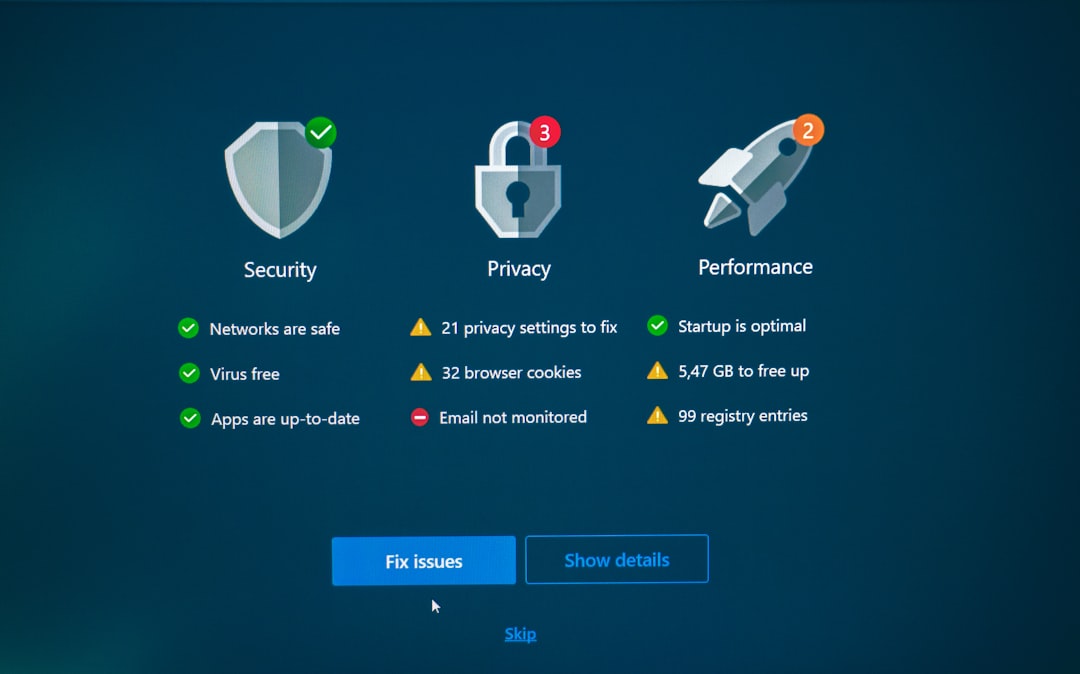
This method ensures traffic is permitted only where needed while keeping the firewall active for all other applications.
Comparison of Common Firewall Options
| Firewall | Type | Ease of Configuration | Granular Rule Control | Recommended for MyAnonamouse |
|---|---|---|---|---|
| Windows Defender Firewall | Software | Moderate | High | Yes, with custom rules |
| macOS Firewall | Software | Easy | Moderate | Yes, allow app exception |
| Router Integrated Firewall | Hardware | Moderate | High | Yes, configure port forwarding |
| Third Party Security Suite Firewall | Software | Varies | Very High | Yes, with advanced rule setup |
Additional Safety Measures
If firewall adjustments are being made for torrent access, users should also consider:
- Using a VPN to encrypt traffic
- Keeping antivirus software active
- Ensuring OS updates are current
- Disabling UPnP if manually forwarding ports
Layered security ensures that even if one defense weakens temporarily, others remain active.
When You Should NOT Disable Your Firewall
Disabling firewall protection is strongly discouraged when:
- Connected to public WiFi
- Using shared networks
- Handling sensitive financial transactions
- No active antivirus is installed
In these environments, doing so could expose the device to active network attacks.
Final Thoughts
Disabling a firewall entirely for MyAnonamouse access should always be a temporary troubleshooting step, not a permanent solution. The smarter and safer route involves configuring precise firewall exceptions or port forwarding rules that allow torrent traffic while maintaining overall system protection.
Security should never be sacrificed for convenience. With careful configuration and responsible practices, users can maintain strong protection while enjoying uninterrupted access to MyAnonamouse.
Frequently Asked Questions (FAQ)
Is it legal to disable my firewall?
Disabling a firewall is not illegal. However, it significantly increases security risks. It should only be done temporarily and for troubleshooting.
Can disabling my firewall damage my computer?
Not directly. However, it exposes the system to potential threats that could infect or compromise the device.
Why is MyAnonamouse not connecting even after disabling my firewall?
The issue may relate to ISP restrictions, closed router ports, incorrect torrent client settings, or tracker downtime rather than firewall blockage.
Is adding a firewall exception safer than disabling it?
Yes. Creating a targeted exception allows only specific traffic while keeping all other protections intact.
Should I disable both router and device firewalls?
No. Disabling both layers removes critical network protections. If troubleshooting, disable only one temporarily to identify the issue.
How long can I safely leave my firewall disabled?
It should remain disabled only for the minimal time necessary to test connectivity—ideally just a few minutes.
Does using a VPN remove the need for a firewall?
No. A VPN encrypts traffic, but a firewall controls incoming and outgoing connections. Both serve different and important security roles.