Roblox has become one of the most popular online gaming platforms in the world, offering players the chance to enjoy experiences with others across the globe. One particular detail that often goes overlooked by players is server region—essentially, where geographically the game server you are connected to is located. Knowing the server region can help in diagnosing lag issues, optimizing matchmaking, or just satisfying curiosity. One of the easiest ways to check a Roblox server’s region is by using Bloxstrap, a custom open-source alternative bootstrapper for Roblox that adds numerous features, including greater diagnostics.
Contents
TL;DR (Too Long; Didn’t Read)
If you’re trying to find out the server region for a Roblox game you’re playing, Bloxstrap can help you identify this information by adding developer tools and overlays that are not available in the official Roblox client. All it takes is downloading Bloxstrap, enabling diagnostics, and joining a game. Server data, including region, becomes accessible through these added features. It’s a useful tool for anybody aiming to understand connection quality or troubleshoot high ping.
What is Bloxstrap?
Bloxstrap is an open-source utility that acts as a custom bootstrapper for the Roblox Player. Unlike the default launcher, Bloxstrap allows extensive customization, feature enhancements, and diagnostics tools for curious developers and players. Created and maintained by the community, it has become especially popular for troubleshooting purposes or improving performance.
With Bloxstrap, players can do the following:
- Customize launch settings
- Keep older versions of Roblox for testing
- Enable diagnostic overlays
- See FPS, latency, and server region information
Why Check Server Region?
Understanding which server region you’re connected to can offer multiple advantages:
- Latency Troubleshooting: If the game feels laggy, identifying whether you’re connected to a distant region can reveal the cause.
- Matchmaking Preferences: Some players prefer to connect only to specific regions for better gameplay stability or language commonality.
- Developer Insights: For developers, knowing where their users are being connected helps optimize server distribution.
In essence, knowing your server region can turn a frustrating laggy game into a more understandable technical issue with potential solutions.
How to Install Bloxstrap
Before being able to check server information, users must install Bloxstrap. Here’s how:
- Go to Bloxstrap’s official GitHub repository or a trusted community source.
- Download the latest release ZIP file.
- Extract the files and run the Bloxstrap.exe installer.
- Follow on-screen instructions, allowing Bloxstrap to replace the Roblox launcher.
- Ensure that you allow any permissions it may request during installation.
After installation, Bloxstrap takes over as the launcher every time you start Roblox, offering a layer of customization and added functionality.
Enabling Diagnostic Overlays
In order to view server region data, players must enable developer options within Bloxstrap or Roblox Studio. Normally, these overlays or GUIs provide real-time metrics such as:
- Ping
- Memory usage
- Network throttling
- Server geographical region
To enable this feature:
- Launch Roblox via Bloxstrap and join any game.
- Press Shift + F3 to open the network diagnostics overlay (sometimes may differ based on platform or setting).
- Look for a field labeled “Server Region” or “Ping Endpoint”. This will typically show something like US-EAST, EU-WEST, or Asia-South.
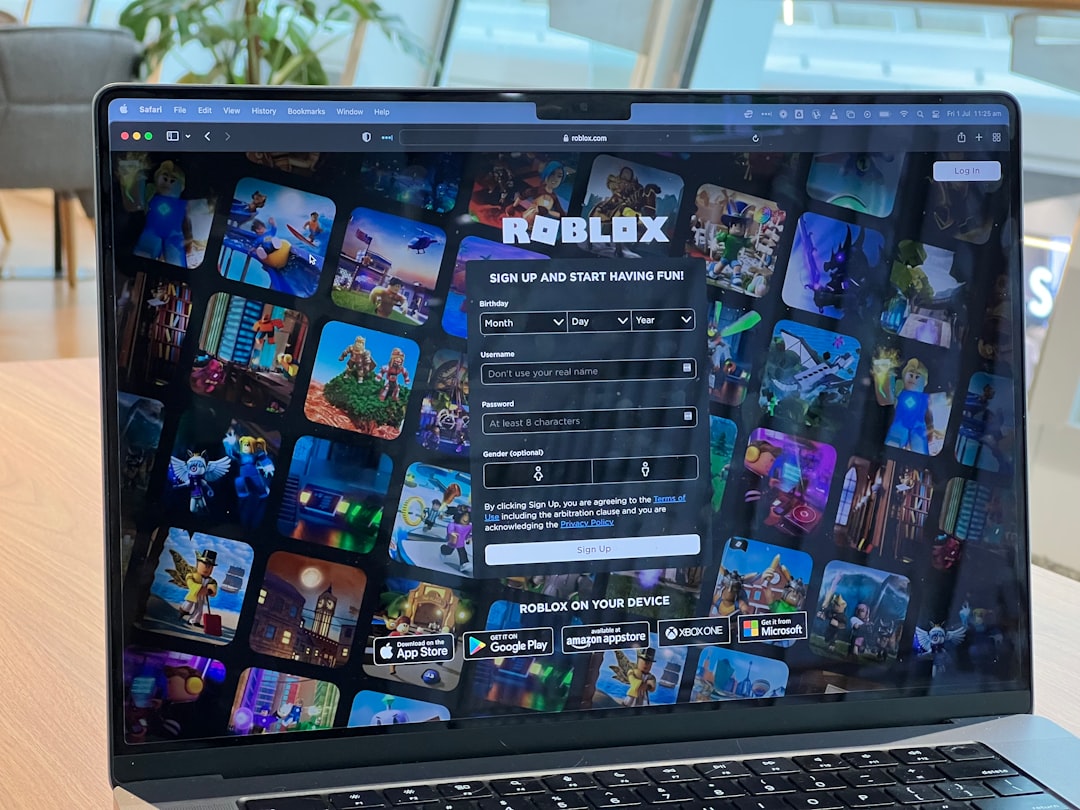
Note: If the diagnostics do not show up, it’s possible you may need to enable Developer Console in the Roblox Studio settings or that the specific experience you joined has custom UIs that block overlays.
Using the Developer Console
Another way to pull server data including region is via the built-in Developer Console:
- While in-game, press F9 to open the Developer Console.
- Navigate to the “Network” or “Summary” tab.
- Search for entries like Server Address, Region, or Ping Endpoint.
Sometimes, even if the word “region” doesn’t appear, clues like IP address, latency, and datacenter labels provide enough information to deduce where the server is located.
How to Interpret the Information
Once you determine your server region via the overlay or console, here’s how to interpret what you see:
- us-east, us-west: You’re playing on servers located in North America.
- eu-central, eu-west: Expect the servers to be hosted in European countries like Germany or the Netherlands.
- asia-south, asia-east: Servers may be in India, Singapore, or Japan.
This info is particularly useful when high ping is occurring, helping pinpoint if it’s a server-distance issue or a local connection problem.
Common Issues and Fixes
If you’re having difficulty finding the server region using Bloxstrap, here’s a list of common problems and how to address them:
- Problem: No overlay appears after pressing Shift + F3.
Fix: Confirm that you’re launching Roblox via Bloxstrap and not the standard client. Also check that overlays aren’t being blocked by display resolution or other software. - Problem: Developer console shows limited network info.
Fix: Try a different game instance or rejoin. Some developers restrict diagnostic details in their games for security or design reasons. - Problem: Server region not labeled clearly.
Fix: Use the IP address shown in the console to perform a geo-IP lookup using online tools like iplocation.net.
Benefits of Using Bloxstrap
Beyond just checking server regions, Bloxstrap opens doors to features that enhance your Roblox experience:
- Revert to earlier versions of Roblox for game testing
- Experiment with developer flags and beta features
- Improve game performance on low-end PCs
It’s become a popular choice not just for players but also for developers who want more visibility and control over their Roblox environment.

Conclusion
Knowing how to identify your server region in Roblox using Bloxstrap can help immensely in troubleshooting and improving your overall gaming experience. With features like custom overlays and developer tools, Bloxstrap empowers users to make more informed decisions about their network and gameplay environment. Whether you’re a casual player or a serious developer, unlocking this insight gives you a better understanding of what’s happening behind the scenes in every Roblox experience.
FAQ
- Is Bloxstrap safe to use?
Yes, Bloxstrap is open-source and widely used in the community—but always download it from trusted sources like GitHub. - Can I use Bloxstrap on Mac?
No, Bloxstrap is currently designed for Windows machines only. - Will using Bloxstrap get me banned?
No, using Bloxstrap for diagnostics or customization is not against Roblox’s Terms of Service as long as you don’t exploit or cheat using it. - Why can’t I see the server region even after using Bloxstrap?
Some games may override or hide debug UI settings. Try a different game or use the Developer Console instead. - Is there a way to choose a specific region to connect to?
Not directly within the standard Roblox client or Bloxstrap, but joining private servers hosted in certain regions may offer similar benefits.