It’s commonly believed that a wired Ethernet connection always outperforms WiFi in speed, reliability, and latency. However, there are surprising cases where users experience noticeably slower Ethernet connections than their wireless counterparts. For those relying on stable, wired connections for productivity or gaming, this can be not only confusing but extremely frustrating.
Contents
TLDR:
If your Ethernet connection is running slower than WiFi, the issue could stem from faulty cables, improper network configuration, outdated drivers, or hardware mismatches. While Ethernet should theoretically be faster, real-world factors sometimes prevent it from outperforming WiFi. Troubleshooting steps like checking cables, updating firmware, and adjusting network settings can help uncover and fix the root cause. Understanding your network setup and equipment is key to resolving Ethernet speed issues effectively.
Understanding Ethernet and WiFi Basics
Before diving into troubleshooting, it’s important to understand how Ethernet and WiFi fundamentally work. Ethernet involves a direct, physical connection between your device and network router or switch via a standard Ethernet cable (commonly Cat5e, Cat6, or higher). It’s typically faster, provides lower latency, and ensures a stable signal without interference from environmental factors.
WiFi, on the other hand, uses radio waves to communicate with your router. While it’s more prone to interference and signal degradation, modern WiFi standards (like WiFi 6 or WiFi 6E) have dramatically improved speeds and reliability—sometimes rivaling wired setups under ideal conditions.
Common Reasons Why Ethernet Might Be Slower Than WiFi
While Ethernet is supposed to be faster, several real-world factors might cause an inverse experience:
- Old or Damaged Ethernet Cables: A frayed or incompatible cable (e.g., Cat5 instead of Cat6) can bottleneck network speeds.
- Faulty Router Ports: A defective or slow Ethernet port on your router might be limiting your connection.
- Hardware Limitations: Devices with outdated or low-performance network cards may underperform on Ethernet.
- Driver or Firmware Issues: Missing or outdated network drivers can severely impact connectivity.
- Incorrect Network Settings: Misconfigured network protocols, such as duplex mismatches or speed limitations, can cause slow performance.
Step-by-Step Troubleshooting Guide
To find the underlying cause of slow Ethernet performance, consider the following thorough checklist:
1. Check the Ethernet Cable
Begin with the simplest culprit: the Ethernet cable.
- Ensure the cable is at least Cat5e or higher.
- Inspect for cuts, kinks, or wear along the length.
- Test the same cable with another device to rule out hardware issues.
2. Test Different Ports
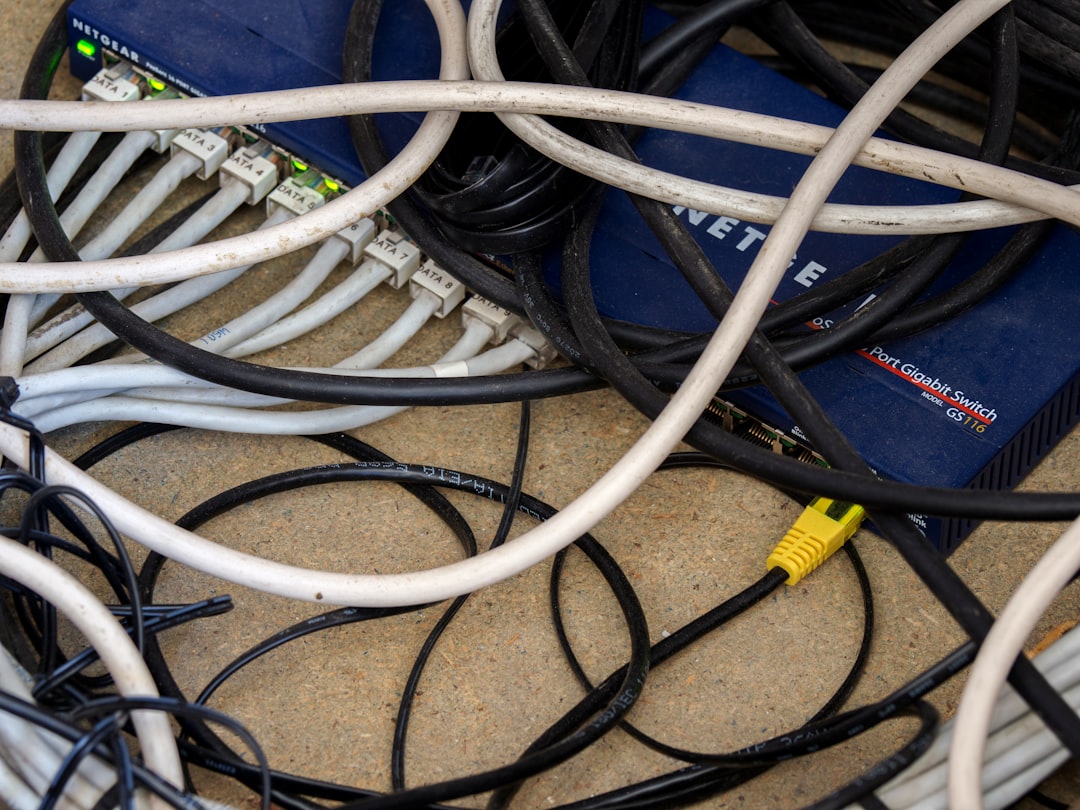
Your router’s port might be defective or capped at lower speeds.
- Swap to another LAN port on the router.
- If available, test using a network switch to isolate the router.
- Try a different Ethernet port if you’re on a laptop or PC with more than one.
3. Compare Speed Tests and Environment Variables
Run a speed test on both WiFi and Ethernet under consistent conditions. Use tools like Speedtest.net.
- Check for background apps using bandwidth during the test.
- Repeat the test using Safe Mode with Networking to eliminate software interference.
4. Update or Reinstall Network Drivers
Outdated drivers are a leading cause of poor Ethernet performance.
- Open Device Manager → Network Adapters.
- Right-click the Ethernet adapter and select Update Driver.
- If updating fails, uninstall and reboot to allow automatic reinstallation.
5. Diagnose Network Adapter Settings
Sometimes speed regulation or duplex modes are manually set incorrectly.
- Go to Control Panel → Network and Sharing Center.
- Select Adapter Settings, then right-click your Ethernet adapter and click Properties.
- Under the Configure button, open the Advanced Tab and look for Speed & Duplex. Set it to Auto Negotiation.
6. Firmware or OS Conflicts
Check your OS for pending updates or bugs affecting networking.
- Ensure your router’s firmware is updated via its admin interface.
- On Windows, install any optional driver updates listed in Windows Update.
7. Test with Another Device
To determine if the issue is with the device or network:
- Use the same Ethernet cable and port on a different device.
- If the second device works fine, the original device may have a hardware problem.
When WiFi Is Just That Good
In some cases, WiFi becomes “faster” due to the implementation of technologies like beamforming, mesh networking, or WiFi 6/6E. These configurations can outperform Ethernet setups, especially if your wired infrastructure is outdated or misconfigured. For example, a router’s internal QoS rules might prioritize WiFi traffic. If bandwidth is shared among devices, Ethernet could mistakenly be deprioritized without the user realizing it.
Advanced Fixes to Consider
- Disable Large Send Offload (LSO): This feature offloads network tasks to the NIC but might introduce latency. Disable it via network adapter settings.
- Monitor Traffic via Task Manager: Check Ethernet utilization while idle and under load.
- Check for Malware: Background programs or malware might use up bandwidth or throttle network ports.
Conclusion
An Ethernet connection being slower than WiFi is counterintuitive—but not impossible. The problem often lies in the “last mile” between your device and the router, whether that’s a low-quality cable, outdated drivers, or misconfigured settings. Regular maintenance of network hardware, firmware upgrades, and periodic speed checks help avoid such issues. Ethernet remains a highly reliable and fast option when properly configured.
FAQ
- Why is my Ethernet capped at 100 Mbps?
- This typically happens due to using an old Cat5 cable, a 100 Mbps network adapter, or an improperly configured router port. Make sure all hardware components support gigabit speeds.
- Is WiFi ever truly faster than Ethernet?
- Under perfect conditions, modern WiFi (especially WiFi 6E) can achieve higher maximum speeds than some older Ethernet setups. However, Ethernet rarely suffers from interference or signal loss, keeping it superior in consistency.
- Can PSU or motherboard cause slow Ethernet?
- Yes. A faulty motherboard Ethernet controller or power supply issues can affect signal drive strength, causing degraded performance.
- Does it help to use a USB-to-Ethernet adapter?
- It can, especially if the onboard Ethernet port is malfunctioning or outdated. Ensure the adapter supports gigabit speeds for best results.
- How can I ensure Ethernet is being prioritized over WiFi?
- Disable WiFi temporarily via your OS or set priority orders in the network adapter settings to ensure Ethernet is used by default.