Spilling water on a MacBook can trigger instant panic. Laptops are significant investments, and even a small amount of liquid can potentially cause serious internal damage. Acting quickly and correctly in the first few minutes can dramatically improve the chances of saving the device. Knowing exactly what to do — and what not to do — can mean the difference between a simple repair and a completely unusable computer.
TL;DR: If water is spilled on a MacBook, immediately power it off, unplug it, and disconnect all accessories. Turn it upside down to prevent liquid from spreading further and avoid turning it back on. Do not use heat to dry it; instead, allow it to air dry thoroughly and seek professional inspection as soon as possible.
Contents
Step 1: Power It Off Immediately
The very first action should be to turn off the MacBook immediately. If it is still running, hold down the power button until it shuts down completely. Even if the device appears to function normally, leaving it powered on increases the risk of short circuits.
Electricity and water are a dangerous combination. When liquid reaches internal components, it can create unintended electrical paths that damage the logic board and other sensitive hardware. Shutting down the system cuts off power and reduces the likelihood of permanent damage.
Important: Do not attempt to save open documents or properly close applications. Speed is more important than proper shutdown procedures in this situation.
Step 2: Unplug and Disconnect Everything
After powering off the MacBook, disconnect all cables and accessories immediately:
- Charging cable
- External drives
- USB devices
- Headphones
- SD cards
If the MacBook is connected to a power adapter, unplug it from both the laptop and the wall socket. External power increases the risk of electrical damage.
If it is safe to do so and the model allows it, disconnecting the battery internally is ideal. However, most modern MacBooks have sealed designs, so this step should only be performed by professionals.
Step 3: Turn the MacBook Upside Down
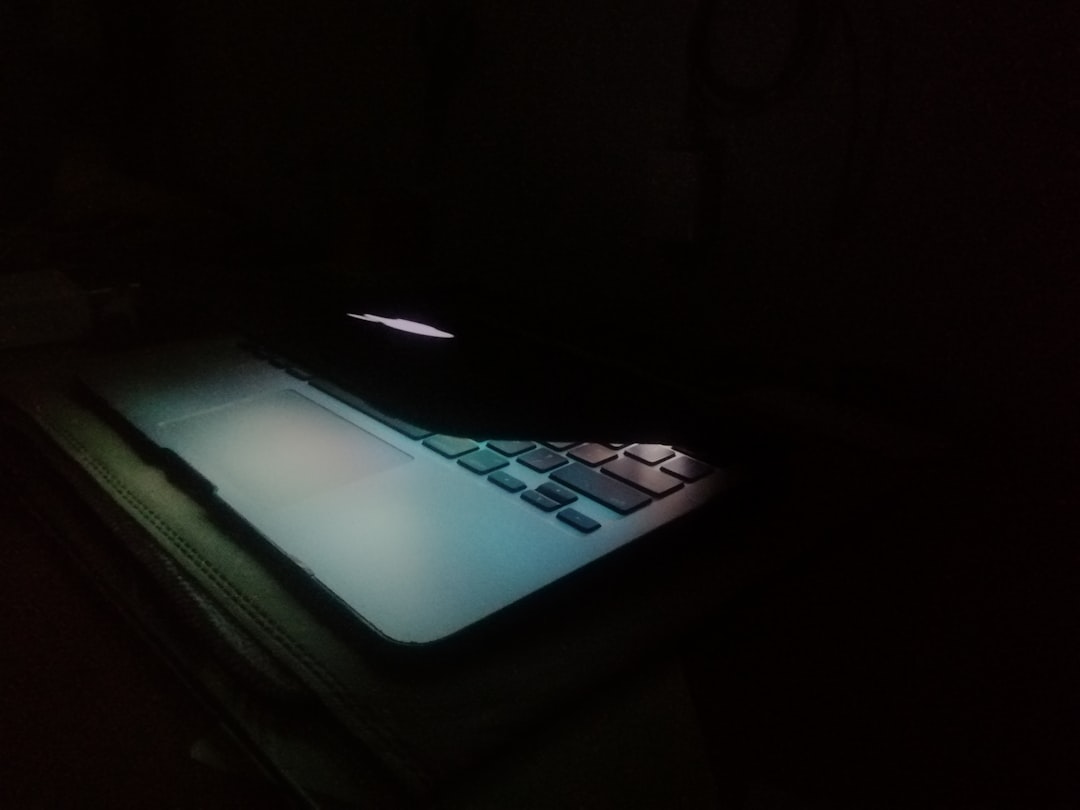
Once the device is powered off and unplugged, reposition it to limit liquid spread. Carefully turn the MacBook upside down and place it in an inverted “V” shape (like an open tent). This position allows gravity to help drain excess liquid away from internal components.
Avoid shaking the device vigorously, as this can spread water further inside. The goal is to allow liquid to drain out naturally.
Step 4: Dry the Exterior Gently
Use a soft, lint-free cloth to dry any visible moisture on the exterior surfaces. Pay particular attention to:
- The keyboard
- Trackpad
- Ports
- Ventilation areas
Do not use a hair dryer or direct heat source. Excessive heat can warp components and push moisture deeper into the device. Forced hot air can also damage delicate circuitry.
If compressed air is available, it may be used gently to blow liquid out of ports, but it should not be applied aggressively.
Step 5: Avoid Common Mistakes
In moments of panic, people often take actions that worsen the damage. Several common mistakes should be avoided:
- Do not turn it back on to “check if it works.”
- Do not plug it in to test charging.
- Do not press random keys.
- Do not use a microwave or oven to dry it.
Turning the laptop on too soon is one of the primary reasons liquid damage becomes catastrophic. Even if the water seems to have evaporated, corrosion may already be forming inside.
Step 6: Let It Air Dry Properly
Place the MacBook in a dry, well-ventilated area. Leave it upside down in the tent position for at least 24 to 48 hours. Patience is critical during this phase.
It is often suggested to place electronics in rice. While rice can absorb some surface moisture, it is not a reliable method for removing internal liquid. A better alternative is to use silica gel packets if available.
Image not found in postmetaEnsure the environment is not humid. A room with circulating air or a dehumidifier is ideal.
Step 7: Understand the Risk of Corrosion
Even if the MacBook appears dry externally, internal corrosion can develop over time. Water — especially tap water containing minerals — can leave conductive residue behind. This residue may slowly eat away at internal circuits.
Corrosion may cause:
- Keyboard malfunction
- Battery issues
- Display flickering
- Random shutdowns
This is why professional inspection is often recommended, even if the device seems to recover.
Step 8: Seek Professional Repair as Soon as Possible
The safest course of action is to take the MacBook to an authorized service provider or reputable repair specialist. Technicians can open the device, inspect for corrosion, and clean internal components with professional tools and solutions.
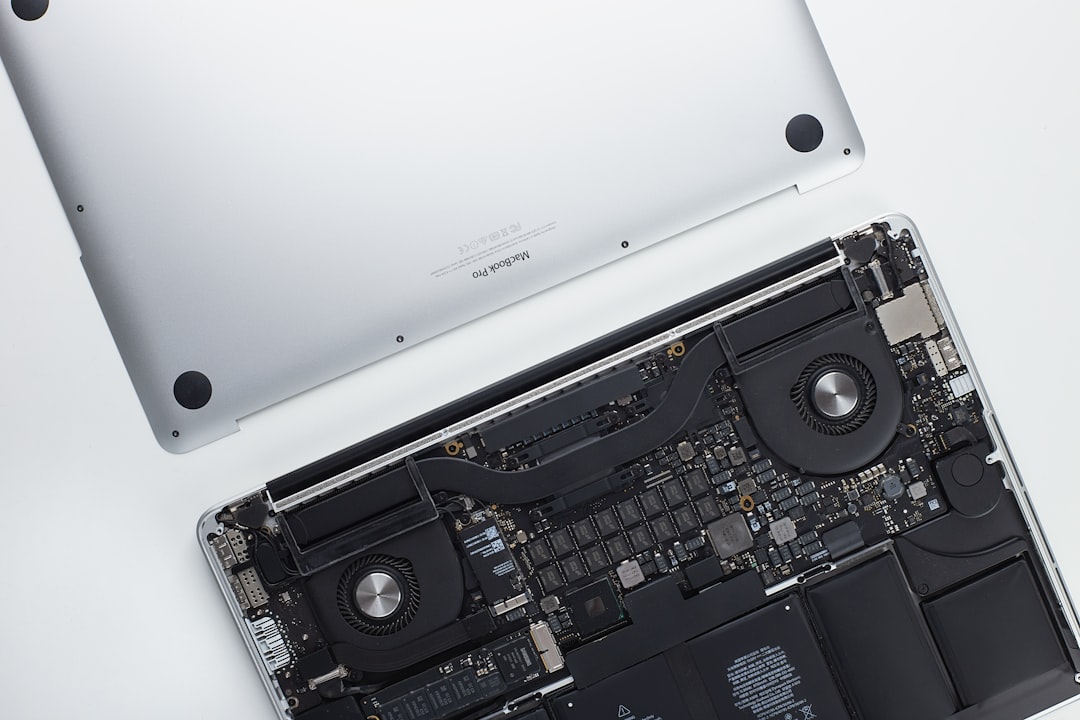
Professional repair services may include:
- Logic board inspection
- Ultrasonic cleaning
- Component replacement
- Battery safety checks
The sooner a technician assesses the damage, the better the chances of preventing long-term issues.
Special Considerations Depending on the Liquid
Not all spills are equal. Water is less harmful than sugary or acidic liquids. If the MacBook was exposed to:
- Coffee or Tea: Sugar and acidity increase corrosion risk.
- Soda or Juice: Sticky residue makes cleaning more complex.
- Salt Water: Highly conductive and extremely damaging.
In cases involving anything other than clean water, professional cleaning becomes even more urgent.
What If the MacBook Turns On Later?
If the MacBook is allowed to dry thoroughly and turns on after 48 hours, it may seem like the problem is resolved. However, that does not guarantee safety. Delayed issues are common.
The device should still be monitored for:
- Overheating
- Unusual fan noise
- Keyboard inconsistencies
- Trackpad glitches
Backing up important files immediately is strongly advised. Creating a full backup ensures that important data is protected in case of future failure.
Preventative Measures for the Future
Once the immediate crisis has passed, it is wise to reduce the risk of future spills:
- Use a keyboard cover designed for MacBook models.
- Keep drinks on a separate surface.
- Invest in a spill-resistant laptop sleeve.
- Avoid working in high-risk environments.
Simple preventative habits can significantly reduce the likelihood of repeated accidents.
FAQ
-
How long should a MacBook dry after water damage?
It should be left to air dry for at least 24 to 48 hours. However, professional inspection is recommended regardless of drying time. -
Is putting a MacBook in rice effective?
Rice may absorb some surface moisture but does not reliably remove internal liquid. Air drying in a well-ventilated space is more effective. -
Can a MacBook survive water damage?
Yes, many MacBooks recover if powered off immediately and properly dried. Fast action significantly improves survival chances. -
Should it be turned on to test if it still works?
No. Turning it on too soon can cause short circuits and worsen the damage. -
What liquid causes the most damage?
Salt water and sugary drinks are especially damaging due to conductivity and corrosion risks. -
Is professional repair always necessary?
While not always mandatory, professional inspection greatly reduces the risk of long-term corrosion and hidden damage.
Spilling water on a MacBook is alarming, but immediate, informed action can significantly limit the damage. Powering down, unplugging, repositioning, and drying properly are essential first steps. Patience and professional evaluation often make the difference between full recovery and irreversible failure. With the right response, even a serious spill does not have to mean the end of the device.