Have you ever opened your Instagram messages and been hit with a horrifying black screen? It’s like your DMs have just disappeared into the void. Super frustrating, right? Don’t worry, you’re not alone—and this isn’t the end of your Insta journey. Let’s fix that dreaded black screen together, quickly and easily.
Contents
TL;DR: Quick Fix for the Black Screen Madness
If your Instagram DMs are showing a black screen, it’s likely a bug or an issue with your app. Start by restarting your phone and updating the app from the App Store or Google Play. If that doesn’t work, try clearing your Instagram cache or reinstalling the app. Still stuck? Keep reading for more detailed fixes.
Why Is Instagram Showing a Black Screen in Messages?
There are a few common culprits behind this problem. Let’s break it down:
- Outdated App: Your Instagram version might be old and glitchy.
- App Cache Issues: Stored data could be corrupted.
- Instagram Bugs: Sometimes it’s just Insta acting up.
- Phone Issues: Your device might need a quick reboot.
- Network Problems: A poor internet connection can mess with loading.
Now that you know what might be causing the issue, let’s get to the fun part—fixing it!
Quick Fixes to Try First
- Restart Your Phone
Sometimes, a simple reboot can clear out hidden bugs. - Force Close Instagram
Swipe it away from your recent apps and relaunch. You might be surprised how often this works. - Check Your Internet
Your Wi-Fi might be the real villain here. Switch to mobile data or try another network. - Update Instagram
Open your App Store or Google Play and check for updates. New versions often fix weird issues.
If one of those worked, woohoo! If not, don’t panic. We’ve got more out-of-the-box tips below.
Digging Deeper: Advanced Fixes
Still seeing the black screen of doom? Time for more serious action!
1. Clear Instagram Cache (Android only)
Sometimes, the app’s saved files get messed up. Here’s how to clear them:
- Go to Settings on your phone.
- Tap Apps or Application Manager.
- Find and tap Instagram.
- Select Storage.
- Tap Clear Cache.
Note: iOS doesn’t let you clear cache manually, unfortunately.
2. Reinstall the App
This may seem extreme, but it’s highly effective. Deleting and reinstalling Instagram gives you a clean version of the app.
- Uninstall Instagram completely.
- Restart your phone.
- Go back to your app store and download Instagram again.
- Log in and head to your DMs.
Still a black screen? Don’t give up yet!
Try Instagram Web
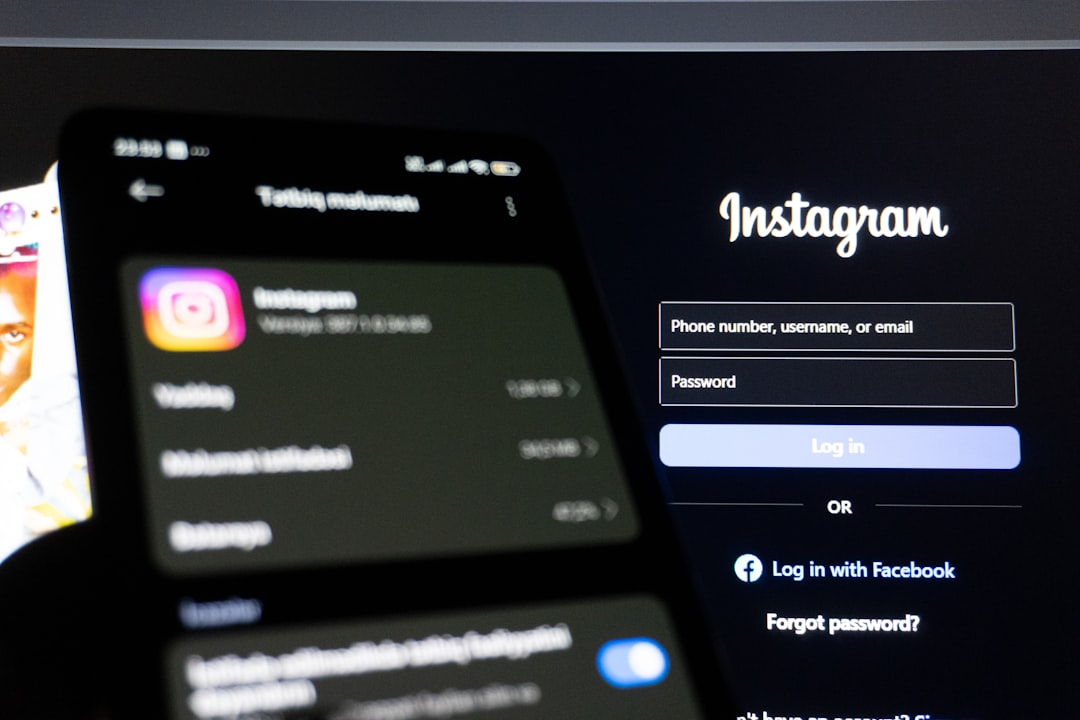
Before you totally lose your mind, try using Instagram on your computer or mobile browser.
- Head to Instagram.com
- Log in with your usual account info.
- Click the message icon and check your DMs.
If your messages show up fine here, it confirms that the issue is with the mobile app.
Log Out and Back In
Sometimes logging out is like hitting the reset button. Follow these steps:
- Go to your profile tab in the app.
- Tap the menu (three lines at the top right).
- Go to Settings and privacy.
- Scroll down and tap Log Out.
- Wait 30 seconds, then log back in.
Is Instagram Down?
It might not be you—it could be Instagram. To check:
- Visit Downdetector.
- Search for “Instagram.”
- If lots of people report issues, you’re in good company.
In that case, chill for a bit and try again later.
Clear Background Apps
Too many apps open can cause memory issues. Close apps you’re not using and try again.
Check for Device Updates
Your phone’s software might need an update to handle newer versions of Instagram.
- Go to your phone’s Settings.
- Tap Software Update.
- Download any waiting updates and restart your phone.
Extra Tips That Might Help
- Switch between light and dark mode in your phone display settings.
- Turn off power saver or battery optimization mode.
- Make sure Instagram has all necessary permissions (like Storage and Camera access).
Still Seeing Black? Report It to Instagram
If none of these fixes worked, it’s time to let Instagram know:
- Go to your profile.
- Tap the menu icon.
- Choose Settings and privacy > Help > Report a Problem.
- Select your issue and explain what’s happening (mention the black screen in DMs).
Their support team might not reply quickly, but the more reports, the faster they fix bugs.
Preventing It from Happening Again
Let’s make sure you never see that black screen again. Here’s how:
- Update your Instagram app regularly.
- Don’t ignore phone software updates.
- Clear cache every once in a while (Android only).
- Don’t overload your phone with too many apps.
Final Thoughts
The black screen on Instagram messages might feel like the end of the world, especially when you’re just trying to reply to a meme or slide into someone’s DMs. But don’t worry—it’s almost always fixable. Try the steps above, and you’ll be back to chatting in no time.
And hey, if it happens again, you’ve got a go-to guide right here. Bookmark it, share it, or tattoo it—OK, maybe not that last one. But keep it handy!