You’ve just fired up your WordPress site, ready to import a gorgeous template from Elementor Cloud Library. Excitement is in the air. You click “Insert” and—bam!—an error appears. Ugh. What went wrong?
Don’t worry. You’re not alone. Many people encounter errors when using the Elementor Cloud Library. The good news? Most of these issues are easy to fix!
Contents
TL;DR:
Elementor Cloud Library may throw errors due to connection problems, plugin conflicts, server issues, or outdated software. The fixes are often simple, like clearing your cache, updating plugins, or tweaking some settings. This guide will help break it all down into easy steps. Let’s turn those pesky errors into happy designs!
Why Does Elementor Cloud Library Throw Errors?
There are a few main reasons behind these annoying errors. Let’s break them down:
- Bad Internet Connection: Your browser can’t talk to Elementor.
- Plugin Conflicts: Other plugins might be fighting with Elementor.
- Old Elementor Version: Using an outdated version? That’s a problem.
- Server Settings: Your hosting might block Elementor’s requests.
- Caching Issues: Sometimes your browser or WordPress holds stale data.
Now, let’s dive into each of these errors—and the fun part—how to fix them!
1. Bad Internet Connection
Yep, it happens. If your connection is slow or unstable, the library can’t load properly. You might see “Connection lost” or “Failed to fetch” errors.
Quick Fix: Try these:
- Reload the page.
- Check your internet speed using a speed test site.
- Switch networks or reset your router.
2. Plugin Conflicts
Elementor doesn’t play nice with every plugin. Some plugins override Elementor’s scripts or block requests to the library.
Common troublemakers:
- Security plugins (like Wordfence or iThemes)
- Optimization plugins (like WP Rocket or Autoptimize)
- Obscure or outdated plugins
How to fix:
- Temporarily deactivate all plugins except Elementor.
- Try loading the library.
- If it works, reactivate plugins one by one to find the offender.

3. Outdated Elementor Version
If you’re using an old version of Elementor or Elementor Pro, it may not sync correctly with the cloud library. Elementor updates often include important fixes and compatibility changes.
Try this:
- Go to your WordPress dashboard
- Click on Plugins > Installed Plugins
- Update Elementor and Elementor Pro to the latest version
Bonus tip: Always back up your site before making updates. Safety first!
4. Server Restrictions
Sometimes, your web host might block outgoing HTTP requests. Elementor Cloud Library needs access to the internet to fetch templates.
How to know: You might see errors like:
- cURL error
- 403 Forbidden
- 403 JSON errors
Fix it like this:
- Reach out to your hosting provider.
- Ask if they’re blocking outbound connections to
https://elementor.com. - Request that they whitelist Elementor’s endpoints.
5. Caching and Browser Glitches
Cache plugins or your browser’s memory might show you an old version of the page. Elementor Cloud Library won’t load if the cache is corrupted.
Try these steps:
- Clear your browser cache (Chrome, Firefox, Safari—they all have this option).
- Log out and log back in to your WordPress admin.
- Clear any caching plugins on your site.
You’d be surprised how often this simple trick works!
6. Wrong WordPress or PHP Configuration
If your WordPress install or your server uses old settings, Elementor might hiccup. Here’s what to check:
- PHP Version: Should be 7.4 or higher.
- Memory Limit: At least 256MB is recommended.
- Post Max Size: Should be bigger than 8MB.
Fix it:
Check under Tools > Site Health or ask your hosting support to upgrade your PHP settings.
A Few More Tips & Tricks
- Login to Elementor: Make sure you’re logged into your Elementor account inside the WordPress dashboard.
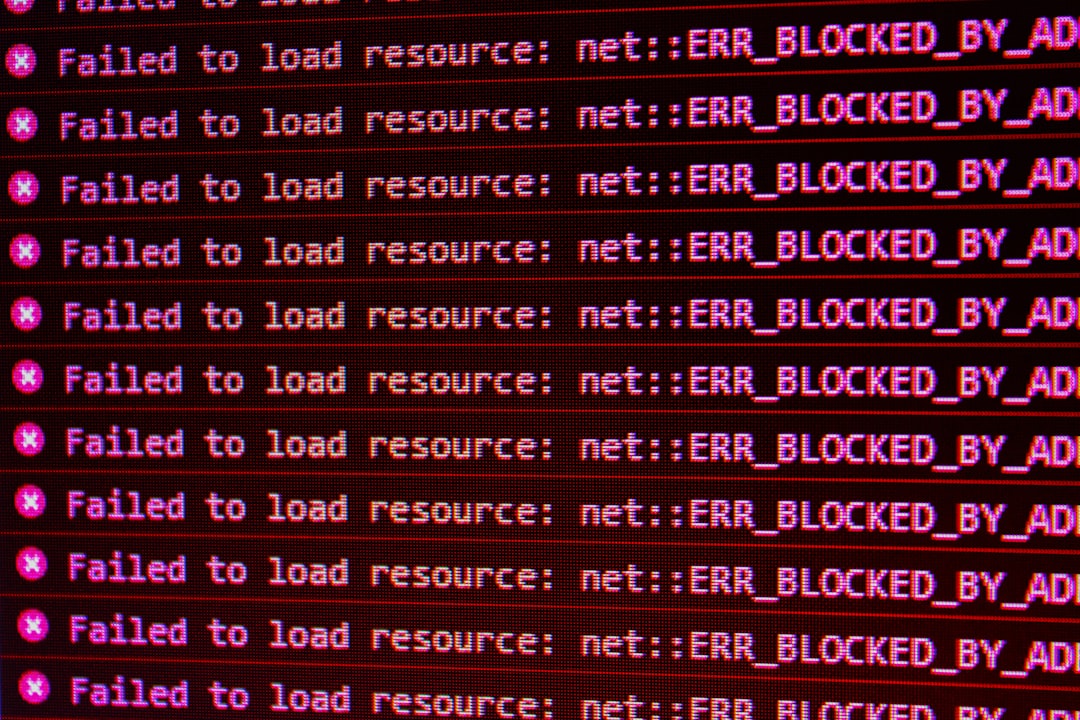
- Disable Adblockers: Browser extensions can sometimes interfere with the library.
- Use a Fresh Install: Test Elementor Cloud on a fresh WordPress install. If it works there, the issue is likely in your site config.
Still Not Working?
If you’ve tried everything and it’s still not working, don’t panic!
- Use Elementor’s Help: Visit Elementor Support and file a ticket.
- Use Community Forums: Check Reddit, Elementor Facebook Groups, or WordPress.org forums.
Let’s Wrap It Up!
The Elementor Cloud Library is a powerful design tool—but like any tool, it can have hiccups. The key is knowing where to look for the problem.
Most issues are quick to resolve with some simple steps:
- Update your plugins.
- Check your internet and cache.
- Contact your host if needed.
Keep calm and keep designing! With these fixes, you’ll have those gorgeous layouts working in no time. Elementor Cloud will become your best friend again—and your site will look amazing.